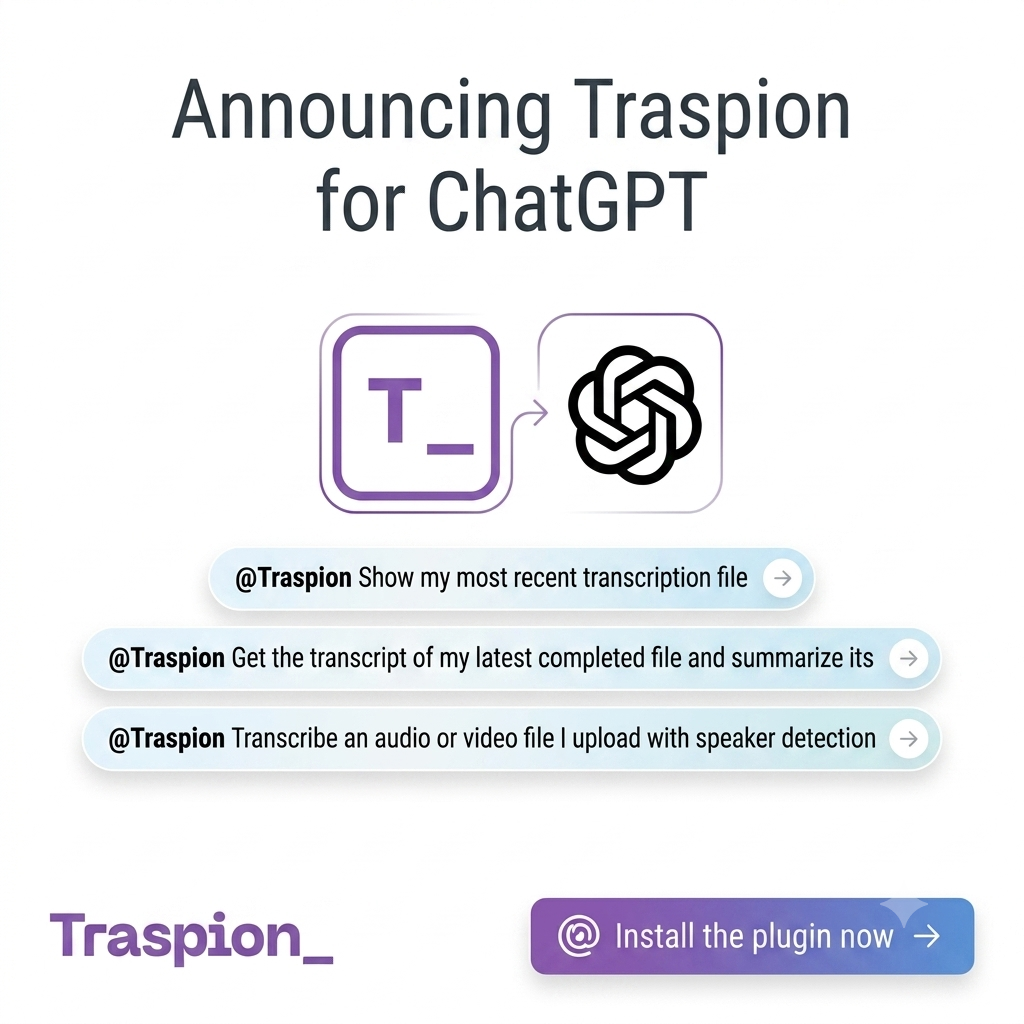
What is the Traspion plugin for ChatGPT?
The Traspion plugin connects ChatGPT to secure tools provided by Traspion. Instead of switching between applications, uploading files manually, and copying transcripts back into ChatGPT, you can ask ChatGPT to use Traspion directly.
For example:
- “@Traspion transcribe this interview and detect the speakers.”
- “@Traspion show my most recent transcription files.”
- “@Traspion retrieve my latest transcript and summarize the key decisions.”
- “@Traspion export this transcript as a DOCX file.”
ChatGPT understands your request, selects the relevant Traspion action, and returns the result in the conversation. You can then continue asking follow-up questions without restarting your workflow.
How Traspion and ChatGPT are connected
Installing the plugin does not merge your ChatGPT and Traspion accounts. Instead, it creates an authorized connection between them.
The connection works as follows:
You install the Traspion plugin in ChatGPT.
ChatGPT asks you to sign in to Traspion and authorize the connection.
Traspion gives ChatGPT limited access to the supported Traspion tools. Your Traspion password is never shared with ChatGPT.
When you request a supported action, ChatGPT sends that request securely to Traspion.
Traspion confirms that the requested file belongs to your account, validates your available minutes when required, and performs the action.
The result is returned to your ChatGPT conversation.
When you attach media in ChatGPT, the plugin transfers the file to your Traspion account for processing. This removes the manual dashboard upload step, but the file and its results are still managed by Traspion.
The connection uses the permissions of the Traspion account you authorize. If you connect a different account, ChatGPT will only be able to access files belonging to that account.
What you need before getting started
You will need:
- A ChatGPT account with access to plugins.
- A Traspion account.
- An active plan or enough pay-as-you-go minutes.
- A supported audio or video file, such as MP3, WAV, M4A, MP4, MOV, FLAC, OGG, WebM, or AMR.
Plugin availability may depend on your ChatGPT plan or workspace settings.
Step 1: Create a Traspion account
Visit traspion.com and create an account, or sign in if you already have one.
Your Traspion account owns your uploaded files, transcripts, translations, exports, available minutes, and account settings.
Use the same Traspion account whenever ChatGPT asks you to connect or reconnect the plugin.
Step 2: Add minutes or select a plan
Open the Billing section in your Traspion account and either purchase pay-as-you-go minutes or select a subscription plan.
Before starting a new transcription, the plugin checks whether your Traspion account has enough available minutes. If there are not enough minutes, you will need to add them through the Traspion dashboard.
Your ChatGPT subscription and your Traspion plan are separate. Installing the plugin does not include transcription minutes or change your current Traspion subscription.
Step 3: Install and connect Traspion
Install the Traspion plugin in ChatGPT.
Follow the connection prompt and sign in using your Traspion account. After installation, start a new ChatGPT conversation and type @Traspion when you want to invoke the plugin explicitly.
You can also find installed plugins through the Plugins section in ChatGPT.
Step 4: Upload your audio or video
Attach one supported audio or video file to your ChatGPT conversation and explain what you want Traspion to do.
For a basic transcription:
@Traspion transcribe this video and detect the language automatically.
For a transcription with speaker detection:
@Traspion transcribe this meeting in English and identify up to four speakers.
For transcription and translation:
@Traspion transcribe this Spanish recording and translate it into English.
ChatGPT sends the attachment and your selected options to Traspion. Traspion validates the request, starts processing, and adds the file to your Traspion account.
Longer recordings may require additional processing time. You can ask ChatGPT to retrieve the transcript again after processing has completed.
Step 5: Continue working with the result
After the transcription is complete, you can continue working inside the same ChatGPT conversation.
You can ask ChatGPT to:
- Summarize the main ideas.
- Produce meeting notes and action items.
- Extract names, dates, questions, decisions, or quotations.
- Rewrite the transcript as an article, email, report, or study guide.
- Correct grammar and punctuation.
- Retrieve an available translation.
- Prepare the transcript for download.
ChatGPT performs the writing and analysis, while the Traspion plugin retrieves or updates the authorized transcript when necessary.
Actions available inside ChatGPT
Upload and transcribe media
You can attach audio or video and start a new Traspion transcription.
Supported options include:
- Automatic or selected language detection.
- Translation into a selected language.
- Speaker detection.
- Expected speaker count.
- Additional transcription instructions.
- Personal-information redaction.
- Profanity filtering.
List recent files
Ask Traspion to display your recent transcription files. This includes files uploaded from ChatGPT and files previously uploaded through the Traspion dashboard.
Retrieve transcripts
You can retrieve the complete transcript and timestamped segments for a completed Traspion file.
This allows you to analyze an older transcript without uploading its original media again.
Retrieve translations
Ask for the completed translation associated with a Traspion file. You can also request a translation language when starting a compatible new transcription.
Analyze transcript content
Once the transcript is available, ask ChatGPT to:
- Produce a short or detailed summary.
- Identify key points.
- Extract action items.
- Create chapters or topic sections.
- Identify important quotations.
- Turn a conversation into an article.
- Create social media content.
- Produce meeting minutes.
- Answer questions using the transcript.
Edit and save content
ChatGPT can help proofread or restructure transcript content. After you review and approve the proposed changes, the plugin can save supported edits to your Traspion file.
Always check important names, numbers, legal statements, medical information, and technical terms before saving AI-assisted edits.
Rename files
Ask ChatGPT to rename a Traspion file so it is easier to identify in your dashboard and future conversations.
Export transcripts and translations
You can export completed content as:
- TXT
- DOCX
The plugin returns a temporary download link. Download the file before that link expires.
For example:
@Traspion export the English translation as a DOCX named Customer Interview.
Check your plan and usage
Ask Traspion to report your current plan and usage totals.
The plugin can show account status, but purchasing minutes and managing subscriptions must still be done through the Traspion dashboard.
Read vocabulary settings
The plugin can read your existing custom spelling replacements and active transcription vocabulary.
These settings help Traspion handle names, brands, industry terminology, and specialized words more accurately.
Request human review
You can submit an owned transcript for professional human review and check its review status from ChatGPT.
Review the request carefully before confirming it. A human-review request cannot currently be withdrawn through ChatGPT after submission.
What must still be done in Traspion?
The plugin is designed for fast conversational workflows. The Traspion dashboard remains the main control centre for billing, advanced configuration, visual editing, and account management.
Use the Traspion dashboard when you need to:
- Purchase additional minutes.
- Select, change, or cancel a subscription.
- Change billing currency.
- Manage billing and account details.
- Create or update custom vocabulary.
- Create or update spelling-replacement rules.
- Enable channel identification.
- Configure medical transcription mode.
- Select granular PII-redaction policies.
- Configure advanced subtitle-generation options.
- Generate new SRT or VTT subtitles during an upload.
- Use the full visual transcript and subtitle editor.
- Inspect timestamps, speakers, and channels visually.
- Download subtitle files.
- Review detailed transcription settings.
- Delete individual files.
- Purge stored media or account data.
- Change account settings or delete your account.
ChatGPT can work with supported subtitle content belonging to an existing file, but the current plugin upload action does not enable new SRT or VTT subtitle generation. Use the Traspion dashboard when starting a transcription that requires generated subtitle files.
In short, use ChatGPT when you want to start a supported transcription or work conversationally with a result. Use Traspion when you need billing, account administration, advanced transcription controls, subtitle generation, or detailed visual editing.
Useful prompts
Find recent files
@Traspion show my five most recent files and tell me which ones have completed.
Summarize a meeting
@Traspion retrieve my latest completed transcript. Summarize the discussion, decisions, owners, and deadlines.
Transcribe with speaker detection
@Traspion transcribe this recording in English with speaker detection enabled. There are no more than three speakers.
Translate a recording
@Traspion transcribe this French interview and translate it into English. Preserve product names in their original form.
Edit a transcript safely
Correct obvious punctuation and paragraph breaks without changing the meaning. Show me the proposed version first and save it only after I approve it.
Export a transcript
@Traspion export the completed transcript as a PDF and give me the download link.
Check available usage
@Traspion show my current plan and available transcription usage.
Troubleshooting
The plugin says I do not have enough minutes
Open Billing in Traspion and add pay-as-you-go minutes or select a suitable plan. Then retry the request in ChatGPT.
ChatGPT cannot find my files
Confirm that the plugin is connected to the same Traspion account that owns the files.
Ask Traspion to list your recent files before requesting a specific transcript. If you recently changed accounts, reconnect the plugin and start a new conversation.
The transcription is not ready
Large files can take longer to process. Wait briefly, then ask Traspion to retrieve the transcript again.
My file type is rejected
Convert the media to a supported format such as MP3, WAV, M4A, MP4, MOV, FLAC, OGG, WebM, or AMR.
ChatGPT and your workspace may also apply their own attachment-size limits.
The connection has expired
Open the plugin or connection settings in ChatGPT and reconnect Traspion. Sign in using the Traspion account containing your files and balance.
I cannot see the Plugins section
Plugin availability can depend on your ChatGPT account, plan, platform, and workspace policy. See the OpenAI plugin documentation or contact your workspace administrator.
Start your first transcription
Install the Traspion plugin, connect your account, start a new conversation, and try:
@Traspion transcribe this file and summarize the five most important points.
You can move from raw media to a useful transcript, summary, translation, or export without interrupting your ChatGPT workflow.